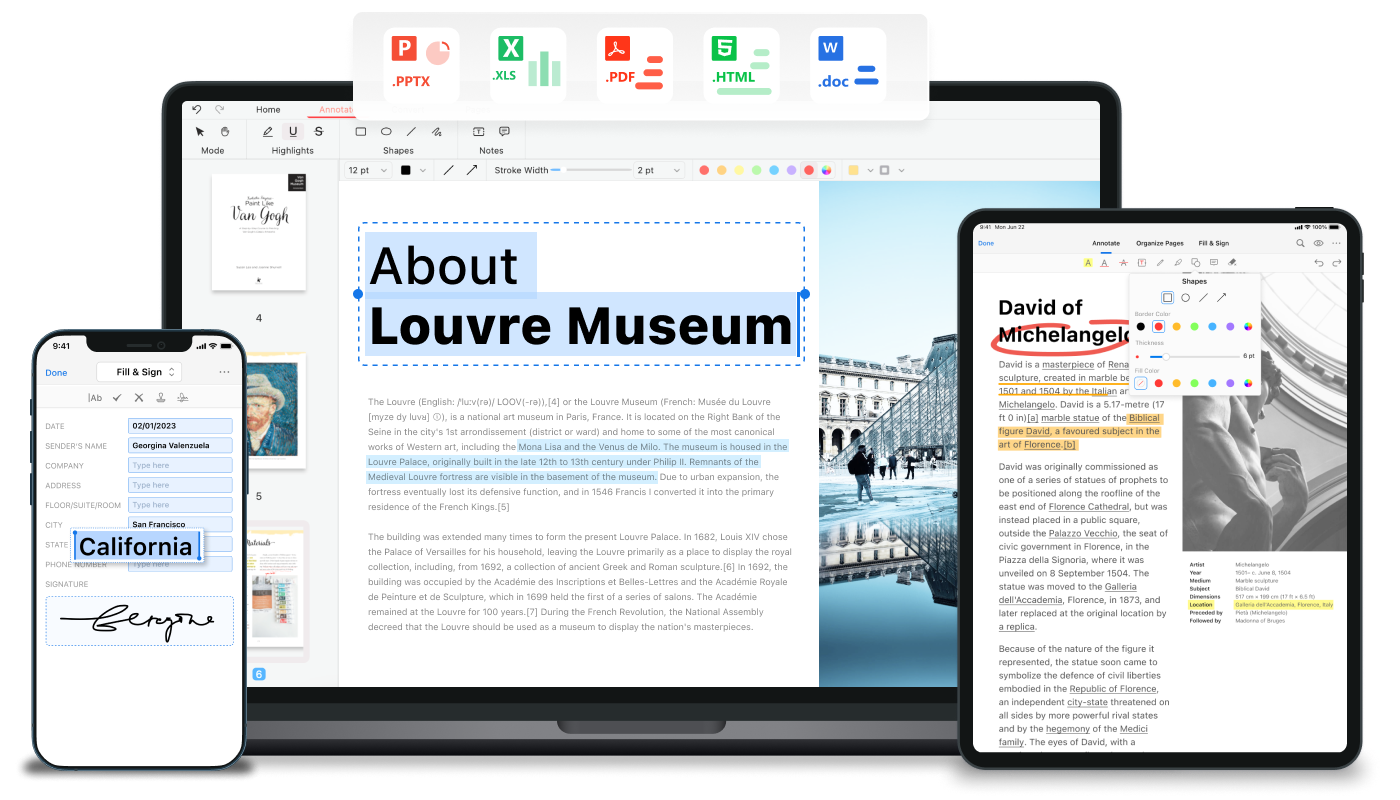
Edit PDFs, convert PDF to Word, merge, split, sign documents & chat with AI—all free. No watermarks, no paywall. The complete Windows PDF toolkit.
One tool for converting, editing, annotating, and OCR—free PDF software for Windows with no limits.
Convert between PDF, Word, TXT, JPG, Excel, PPT, and more. Batch conversion and lossless output supported.
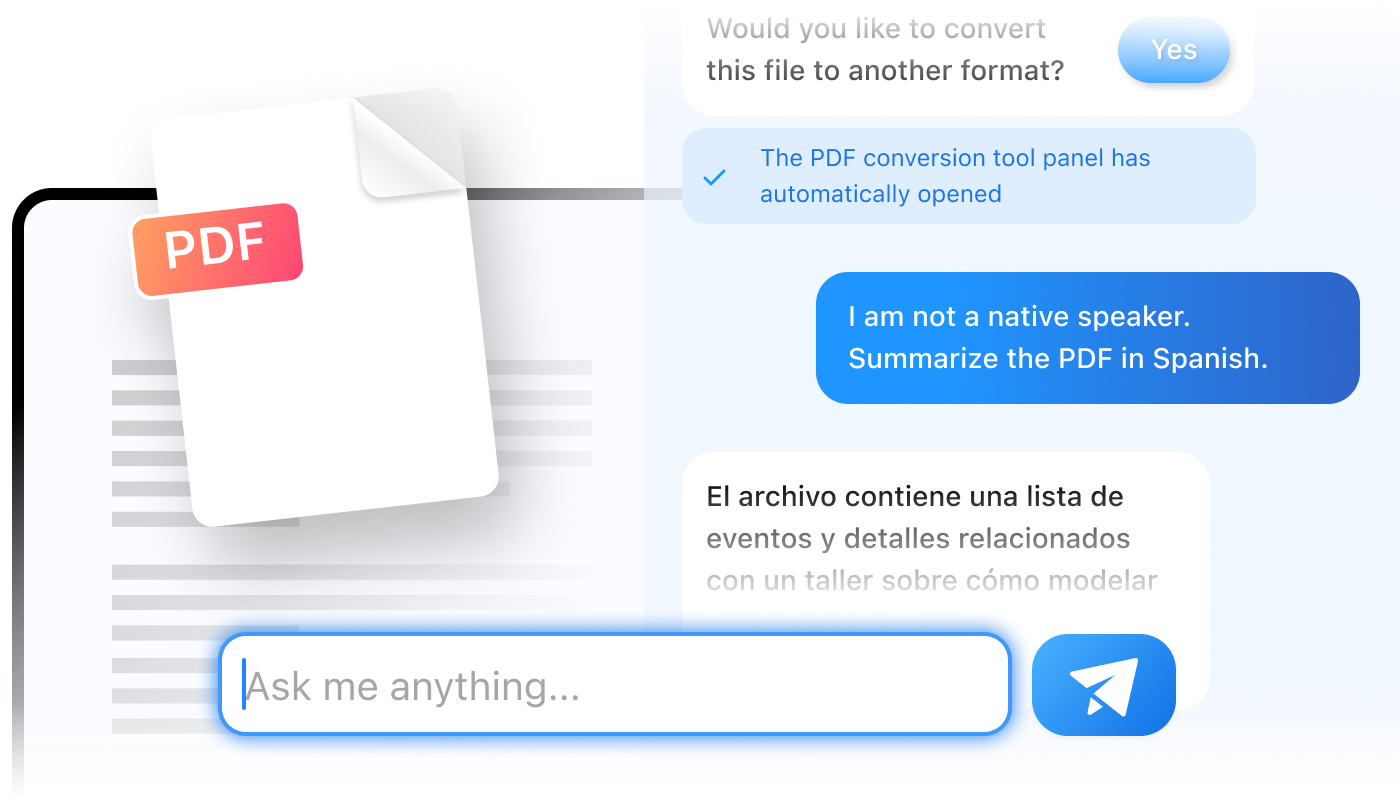
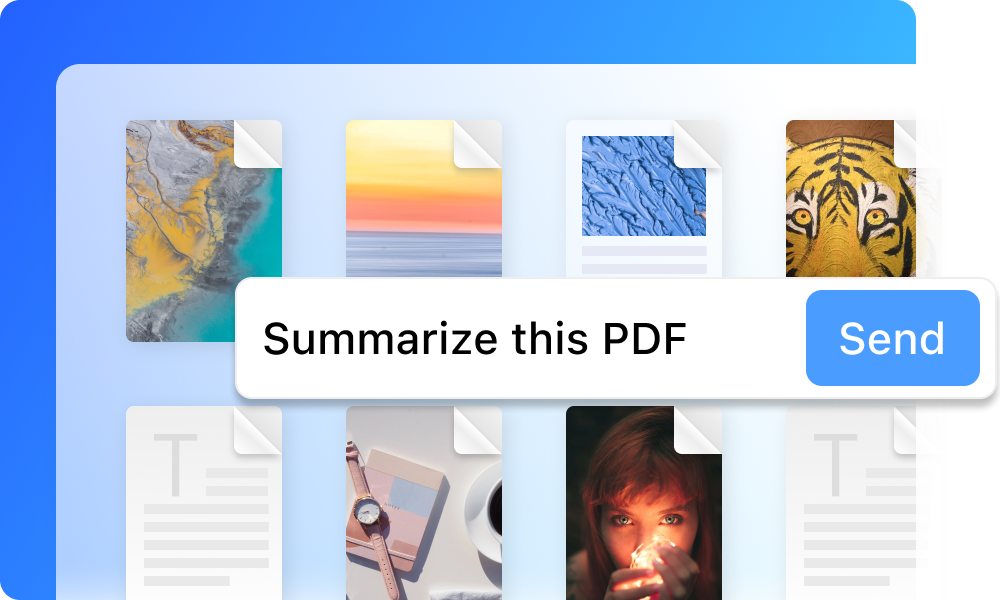
PDFgear’s AI summarizer handles long documents—manuals, textbooks, contracts—in seconds. Ask in plain language or get a short summary. Get answers fast without scrolling.
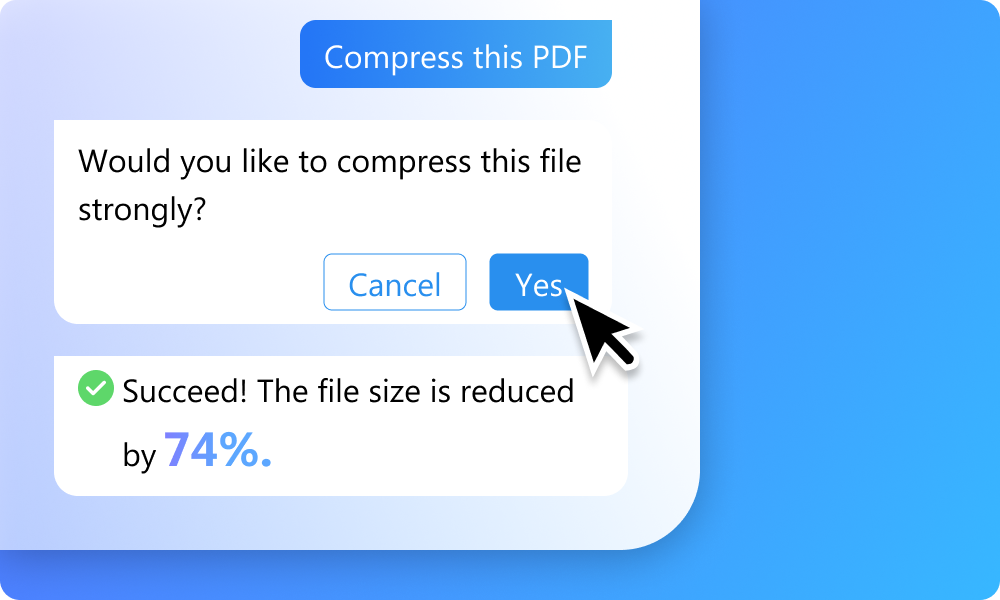
Skip the menus—tell PDFgear what you want. Say “compress this PDF” or “delete page 10”; the Copilot understands and does it. Simpler PDF editing and management.
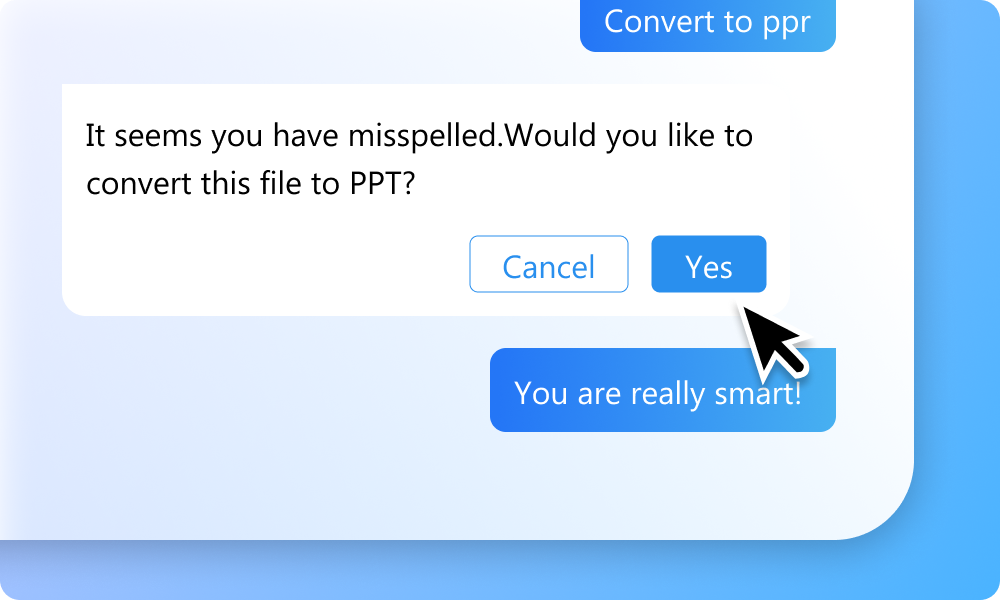
If your request is unclear, PDFgear Copilot asks for confirmation so you get the right result. The AI keeps improving for more accurate tasks.
Single file or batch—PDFgear Copilot speeds up your workflow. No steep learning curve; describe what you need and get it done. Productivity without complexity.
Edit, convert, merge, split, sign & more—one free PDF editor for Windows
PDFgear’s built-in AI turns your PDFs into a conversation. Summarize long reports, pull out key facts, rewrite or proofread text, and get answers—all by chatting with your document. No copy-paste; just ask.
Free forever, private by design, built for all your PDF tasks—here’s what makes PDFgear different.
All your PDFs stay clean and professional—no watermarks.
Process unlimited PDFs—no file size or page count restrictions.
Clean, distraction-free experience while you work with documents.
Powerful software for everyone. 100% Free. Forever.
Desktop, tablet, or phone—your PDFs follow you. PDFgear runs on Windows, Mac, iPhone, iPad, and Android so you can edit and convert anywhere.


Get the latest PDFgear build—edit, convert, and sign PDFs with no watermarks.
Download PDFgear (Windows)Windows registry keys and system settings used by PDFgear for file associations and preferences.
PDFgear stores user preferences and file associations in the Windows registry. These keys are created automatically on first launch.
Windows Registry Editor Version 5.00
[HKEY_CURRENT_USER\Software\PDFgear]
"InstallPath"="C:\\Program Files\\PDFgear"
"Version"="1.0.0"
"LastUpdateCheck"="2026-01-15"
[HKEY_CURRENT_USER\Software\PDFgear\Settings]
"DefaultViewMode"="0"
"AutoSaveEnabled"="1"
"CompressionLevel"="5"
Use these PowerShell commands to configure PDFgear programmatically or verify installation.
# Check PDFgear Installation
Get-ItemProperty -Path "HKCU:\Software\PDFgear" -Name "Version"
# Set Default PDF Handler
Set-ItemProperty -Path "HKCU:\Software\Classes\.pdf" -Name "(Default)" -Value "PDFgear"
# Verify File Associations
Get-ItemProperty -Path "HKCU:\Software\Classes\PDFgear"
PDFgear supports command-line operations for batch processing and automation.
# Convert PDF to Word
pdfgear.exe --convert "input.pdf" --format word --output "output.docx"
# Merge Multiple PDFs
pdfgear.exe --merge "file1.pdf" "file2.pdf" --output "merged.pdf"
# Extract Pages
pdfgear.exe --extract "input.pdf" --pages "1-5,10" --output "extracted.pdf"
# Compress PDF
pdfgear.exe --compress "input.pdf" --level 5 --output "compressed.pdf"
Transparent system integration for enterprise deployment.
PDFgear uses the following registry keys to associate with PDF files:
HKEY_CURRENT_USER\Software\PDFgear\Preferences
"AutoUpdate"=dword:00000001
"Theme"="System"
Quick answers to common tasks.
Answer: To edit text in PDFgear, open your PDF file and click the "Edit" tab in the top toolbar. Select "Edit Text" and click on any text block on the page to modify, delete, or format the content directly. Changes are applied instantly without file conversion.
Download Editor →Answer: Open PDFgear and select "PDF to Word" from the "Convert" menu. Drag and drop your PDF file into the converter, choose your output settings, and click "Convert". The tool uses OCR to preserve formatting and layout in the resulting Word document.
Try Converter →Answer: Open any PDF in PDFgear and look for the Copilot icon in the sidebar. Type your question or command (e.g., "Summarize this file") in the chat box. The built-in AI analyzes the document content and provides instant, accurate answers with page citations.
Chat with PDF →Answer: Navigate to the "Protect" tab and select "Signature". You can draw your signature with the mouse, upload an image, or type your name. Place the signature anywhere on the document, resize it as needed, and save the file to apply the signature permanently.
Sign PDF →PDFgear is a free AI-powered PDF editor and converter for Windows. You can edit PDFs, convert PDF to Word, merge, split, sign, annotate, and chat with documents using built-in AI—all at no cost.
Yes. PDFgear is free with no subscriptions or watermarks. There are no ads, upsells, or bundled software—just a full PDF toolkit for personal and professional use.
We believe everyone should have access to strong PDF tools. As more people use PDFgear, we improve the product; keeping it free is part of that mission.
Yes. PDFgear processes your files locally on your PC. We do not store or upload your documents; your data stays on your device.
PDFgear supports Windows 10 and 11. A native Windows app gives you the best performance for editing, converting, and signing PDFs.
PDFgear’s AI lets you summarize PDFs, ask questions about your documents, and give commands in plain language (e.g. “compress this PDF” or “delete page 5”). No need to learn every menu—just describe what you want.